Organization and account
Your account
Change the name others see, find the email you sign in with, create an account and sign out.
Open Your account in SFH PortfolioYour name and email#
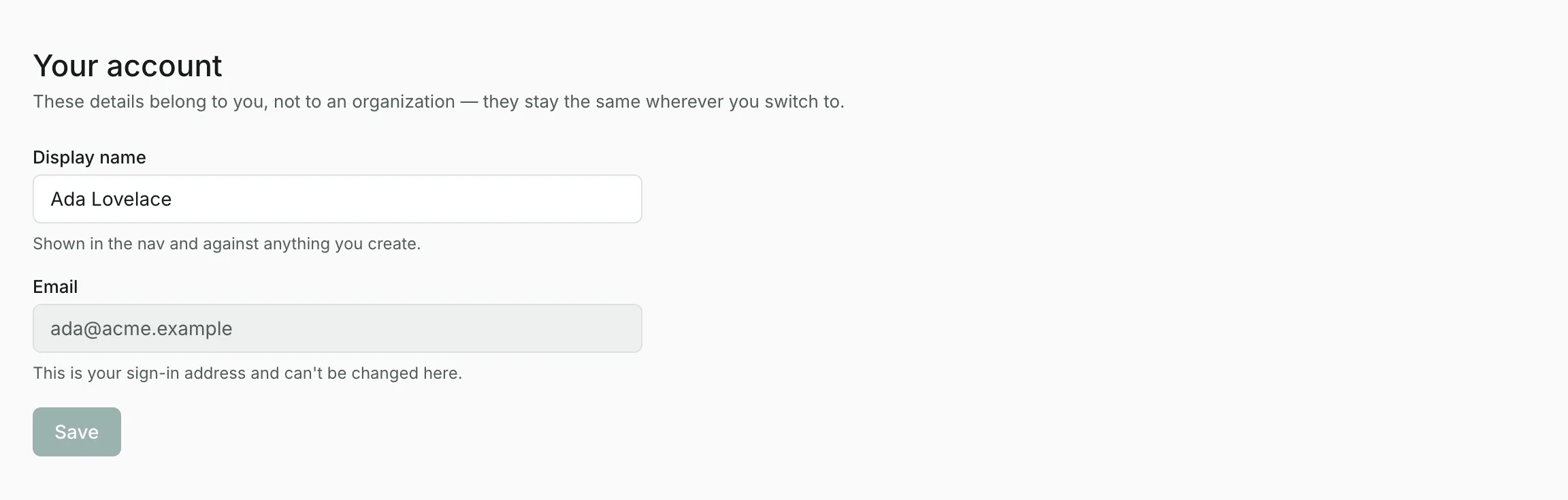
Select your name at the top right to change your Display name; on a narrower screen, it's Your account in the menu at the top left. Your email address is shown there too; it's the one you sign in with and can't be changed.
Creating an account#
Sign up with your name, email address, a password and your organization's name. We email you a link, and your account is created when you open it and select Confirm. The link works for 24 hours.
Joining a teammate's organization? Use the invite link they sent you instead: it creates your account and adds you to their organization in one step.
Signing out#
Select Log out at the top right of any page.
Updated
Related topics
- Organizations and scenario branchesBelong to several organizations and switch between them, create a new one, or branch a copy of your data to try out a different plan.
- Members and invitesInvite teammates with a link, choose who's an owner, remove people, and see the apps connected to your organization.
- Getting startedWhat SFH Portfolio tracks, how portfolios, projects, expenses and people fit together, and the first things to set up.