Working in the app
Dashboard
Budget against spend across every portfolio for the period you choose, with what needs attention and where the money is going.
Open Dashboard in SFH PortfolioWhat the Dashboard shows#
The Dashboard is the first page you see after signing in. It compares your organization's budget with what has been spent across all portfolios in the selected period. Choose Month, Quarter, Year or 3-Year at the top right; see Timeframes and fiscal years.
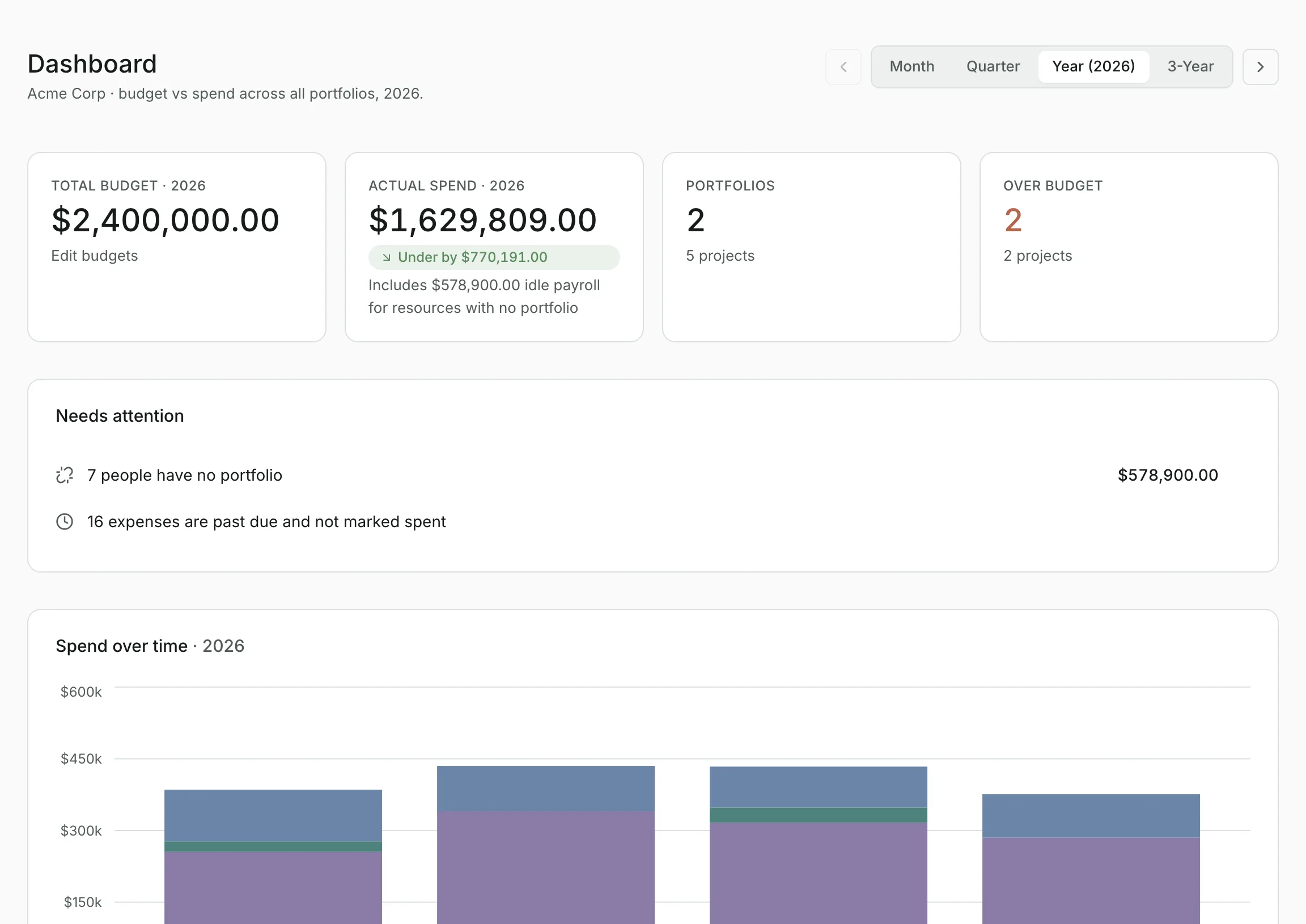
The figures at the top#
- Total budget: your annual budget for the period. Annual budgets are set per fiscal year, so it shows on Year and 3-Year and reads N/A on Month and Quarter.
- Actual spend: everything counted in the period, expenses and labor together. When a budget is set, a badge shows how far over or under it you are. If some people aren't in any portfolio, a note says how much of the total is their idle payroll.
- Portfolios: how many portfolios you have, and how many projects.
- Over budget: how many projects have spent more than their budget for the period. A project's budget is spread across its dates, so a quarter is measured against that quarter's share.
Needs attention#
A short list of what probably needs fixing, each line linking to the page where you can fix it. Only lines that apply are shown:
- People who aren't allocated to any project in the period.
- Portfolios that have people but no projects.
- People with no portfolio, and what their time costs.
- Projects with nearly identical names, which are often duplicates.
- Projects with no spend in the period.
- Expenses past their date that haven't been marked spent.
When everything is in order, it says Nothing needs attention.
Spend over time#
A chart of spend through the period, stacked by labor, capex and opex, so you can see when the money went out and on what.
Capex, opex and labor#
One card per category shows its total for the period, what was expected by now and what was actually spent. If your annual budget sets a limit for the category, the card measures against it.
Select a card for the detail: Capex and Opex open the Expenses list filtered to that type, and Labor opens Resources.
Updated
Related topics
- Annual budgetsSet one top-down budget per fiscal year, with optional limits for capex, opex and labor, for the Dashboard to measure spend against.
- PortfoliosGroup projects into portfolios, compare their spend, and open one to see its projects, expenses, people and roadmap.
- Timeframes and fiscal yearsHow the Month, Quarter, Year, 3-Year and Lifetime views work, how to step between periods, and how fiscal years shape every figure.