Working in the app
Resources
Manage your roster, loaded labor rates and departments, see who's allocated where, and draft allocations with AI.
Open Resources in SFH PortfolioWhat the Resources page shows#
Resources is your roster and what it costs in the selected period. The tiles at the top show:
- Total resources: people active in the period.
- % unallocated: the share of their time not allocated to any project.
- Total cost: the full loaded cost of the roster, allocated or idle.
- That cost split by loaded labor rate and split by portfolio.
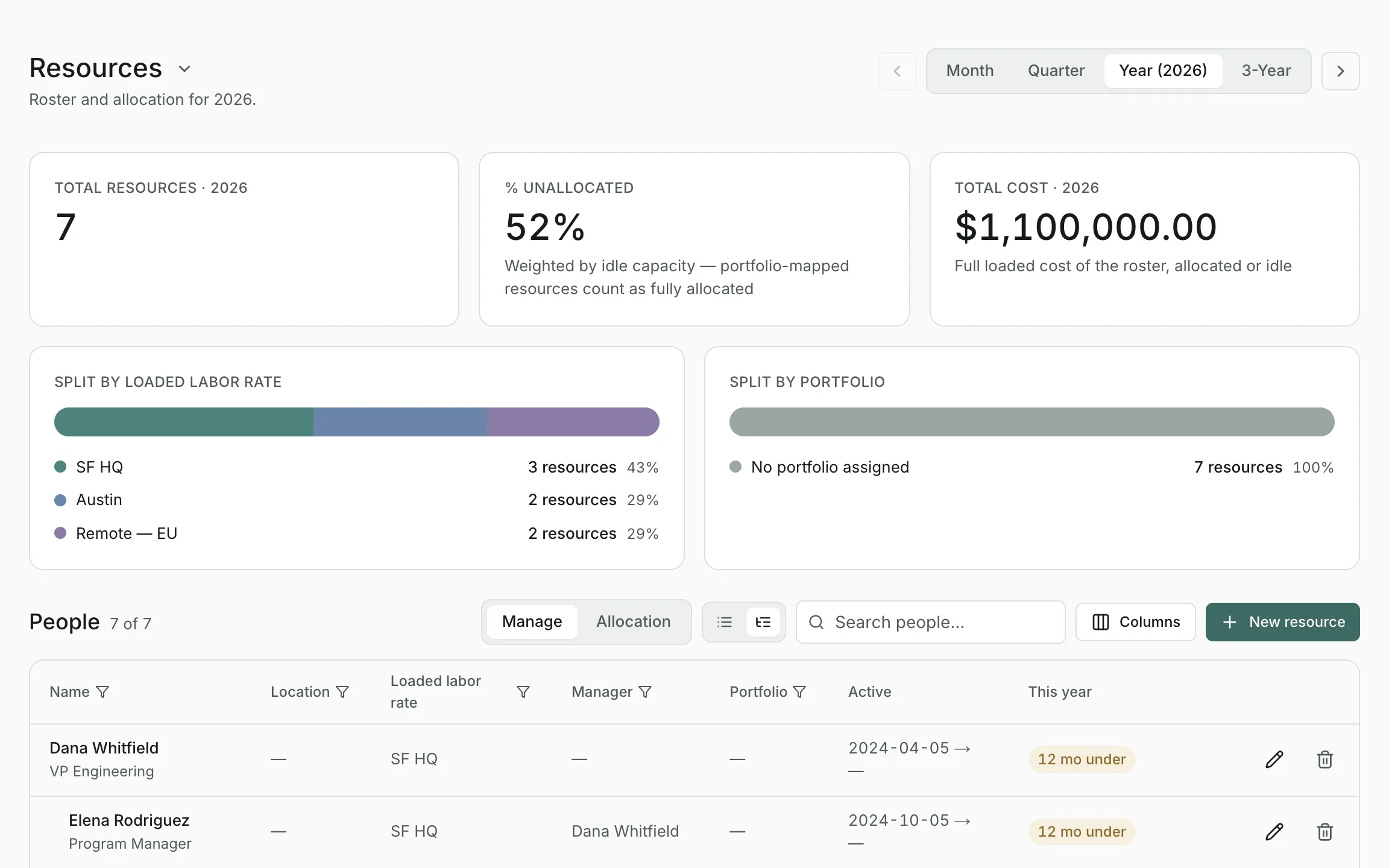
The tiles follow the people table's filters: filter the table, and they re-total for just those people.
Loaded labor rates#
A loaded labor rate is the full monthly cost of a person in a given place or grade, such as US Senior or India Standard, including salary, benefits and overhead. A person needs a rate before their time counts as labor spend.
Open the settings menu next to the page title and choose Edit loaded labor rate to show your rates, then add one with New loaded labor rate. Rates can change over time: add a new amount with an Effective from date, and months before it keep the old rate.
Departments#
Departments group people for filtering and reporting and don't affect any cost. Manage them from the same settings menu with Edit departments.
Adding and editing people#
Select New resource and fill in:
- Name and Role.
- Location: where they're based, in your own words.
- Loaded labor rate: the rate their cost uses.
- Manager, Portfolio and Department.
- Start date and End date, if they joined or will leave within your planning range. People only count while they're active.
A person's Portfolio is where their unallocated time is charged, as Unassigned time. People with no portfolio count as idle payroll on the Dashboard. Edit or delete anyone from their row in the table.
Finding people#
- Search by name, or filter from each column's header.
- Switch between a flat list and the reporting hierarchy, which nests people under their managers.
- Choose which columns to show. Your choice is remembered.
The Allocation view#
Switch the table from Manage to Allocation to see how much of each person's time is allocated in each month of the period:
- Under 100%: some of their time isn't on any project.
- Fully allocated: exactly 100%.
- Over 100%: allocated to more than their time.
- Inactive: before they started or after they left.
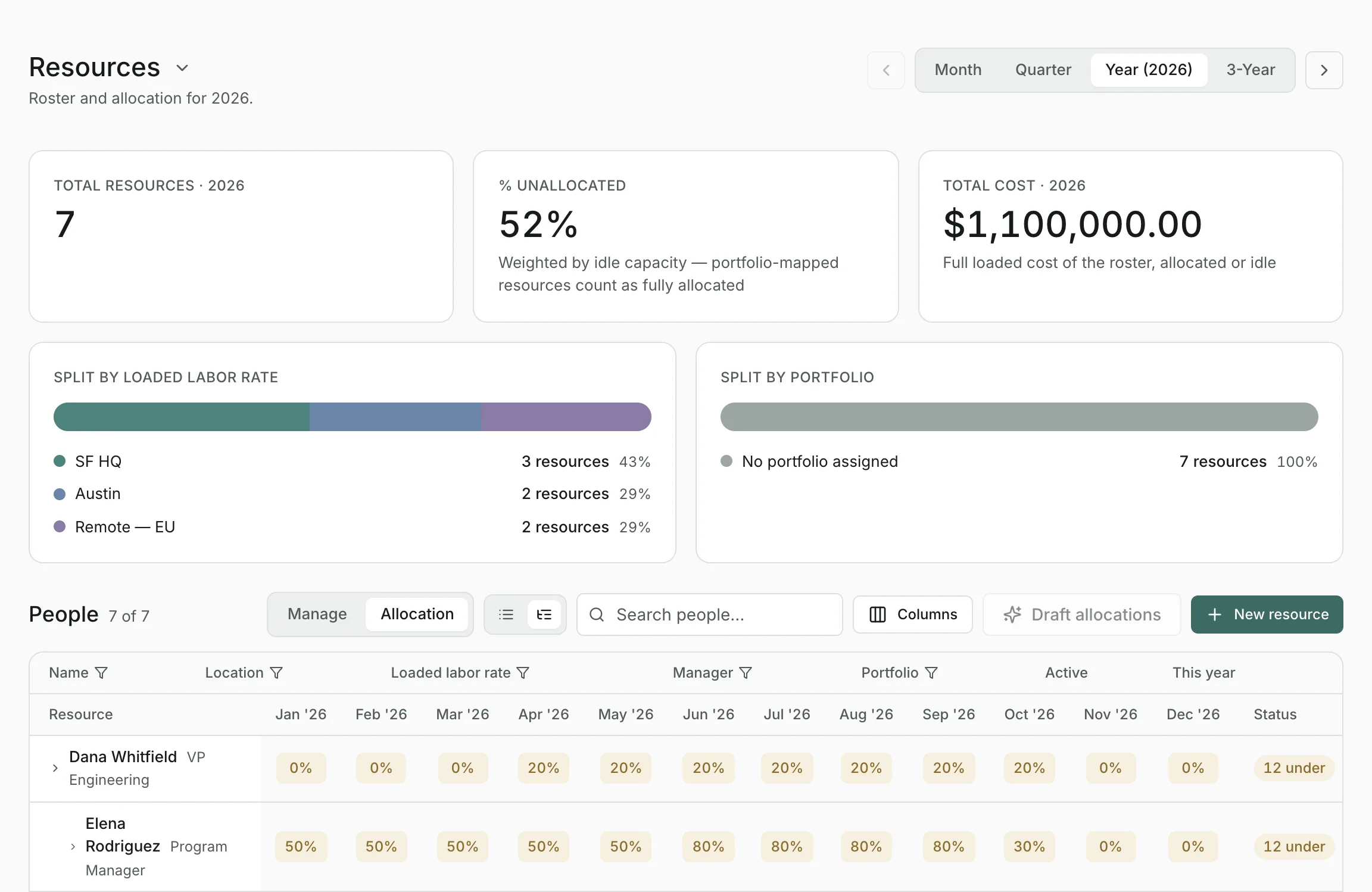
To change someone's allocation, open the project; see Labor allocations.
Drafting allocations with AI#
In the Allocation view, Draft allocations proposes projects for the people in view who aren't allocated in the period, using their portfolio, role and team. It can take a minute or two; you can close the window and keep working, and the draft will be there when you come back.
Nothing is saved until you accept. Review every proposed row, adjust its percentage, untick any you don't want, then select Accept. A draft covers up to 150 people at a time; if more aren't allocated, filter the table first, for example by portfolio.
Updated
Related topics
- ProjectsA project's budget, dates and spend over time, with its expenses and labor allocations, and how to edit, split, assign and archive.
- DashboardBudget against spend across every portfolio for the period you choose, with what needs attention and where the money is going.
- ImportBring portfolios, projects, people, allocations and expenses in from an Excel, CSV or text file, with a review before anything is saved.