Working in the app
Snapshots
Save a point-in-time copy of your organization's data and restore it later, for example before a large import. For organization owners.
Open Snapshots in SFH PortfolioWhat a snapshot is#
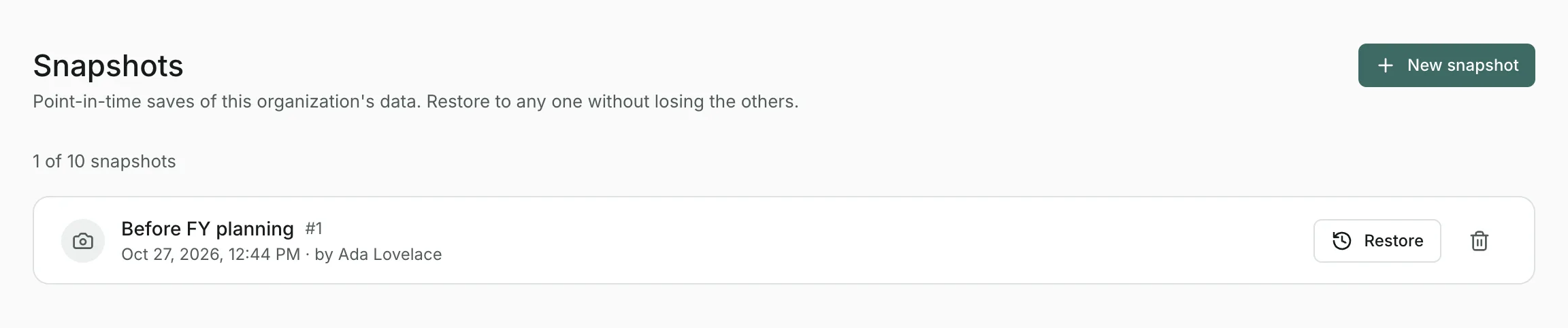
A snapshot saves every portfolio, project, expense, resource and allocation as they are right now. Restoring it puts them all back the way they were. Only organization owners can use snapshots.
Creating a snapshot#
Select Create snapshot, optionally give it a label such as Before Q3 import, and save. An organization keeps up to 10 snapshots; delete an old one to make room for another.
Restoring a snapshot#
Select Restore on a snapshot. Everything is replaced with its saved state, and changes made since are lost unless a later snapshot saved them. Other snapshots aren't affected.
Snapshot or scenario branch?#
A snapshot is for going back. To try out a different plan without touching the real one, create a scenario branch instead.
Updated
Related topics
- Organizations and scenario branchesBelong to several organizations and switch between them, create a new one, or branch a copy of your data to try out a different plan.
- ImportBring portfolios, projects, people, allocations and expenses in from an Excel, CSV or text file, with a review before anything is saved.
- Audit logSee every create, update and delete of your organization's financial data, who made it and when, with the values before and after.