Organization and account
Organizations and scenario branches
Belong to several organizations and switch between them, create a new one, or branch a copy of your data to try out a different plan.
Switching organizations#
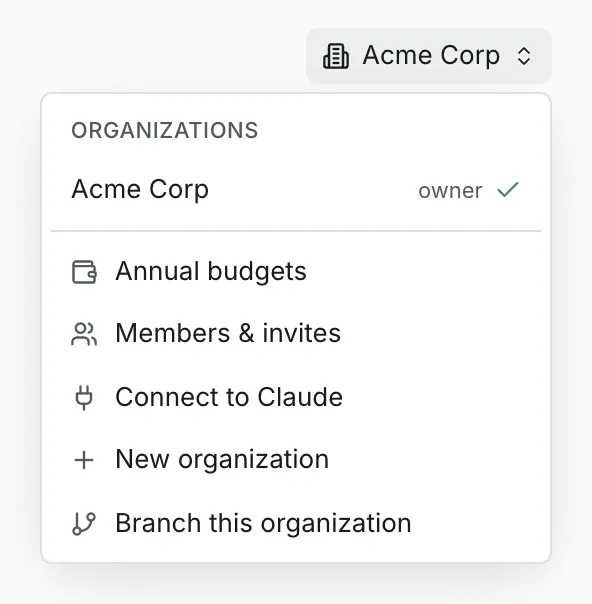
One account can belong to several organizations, and each one's data is completely separate. The organization menu at the top right shows the one you're in; choose another there to switch.
Creating an organization#
Choose New organization from the organization menu, enter its name and select Create organization. It starts empty, and you're its owner.
Scenario branches#
A scenario branch is a new organization pre-loaded with a full copy of the current one's data: portfolios, projects, budgets, expenses, resources, everything. Use one to model a reorganization, a budget cut or a hiring plan without touching the real plan.
- Choose Branch this organization from the organization menu, name the branch and select Create branch. Only owners can branch.
- From then on the two are independent: changes in either never affect the other.
- A banner at the top of every page reminds you when you're working in a branch.
- Only you can see a new branch until you invite someone from its own Members page.
Updated
Related topics
- Members and invitesInvite teammates with a link, choose who's an owner, remove people, and see the apps connected to your organization.
- SnapshotsSave a point-in-time copy of your organization's data and restore it later, for example before a large import. For organization owners.
- Your accountChange the name others see, find the email you sign in with, create an account and sign out.