Working in the app
Import
Bring portfolios, projects, people, allocations and expenses in from an Excel, CSV or text file, with a review before anything is saved.
Open Import in SFH PortfolioWhat you can import#
Import reads a spreadsheet, a CSV file or text you paste, and maps it onto portfolios, projects, loaded labor rates, people, allocations and expenses. Your layout doesn't have to match ours: AI works out which column is which.
Importing a file#
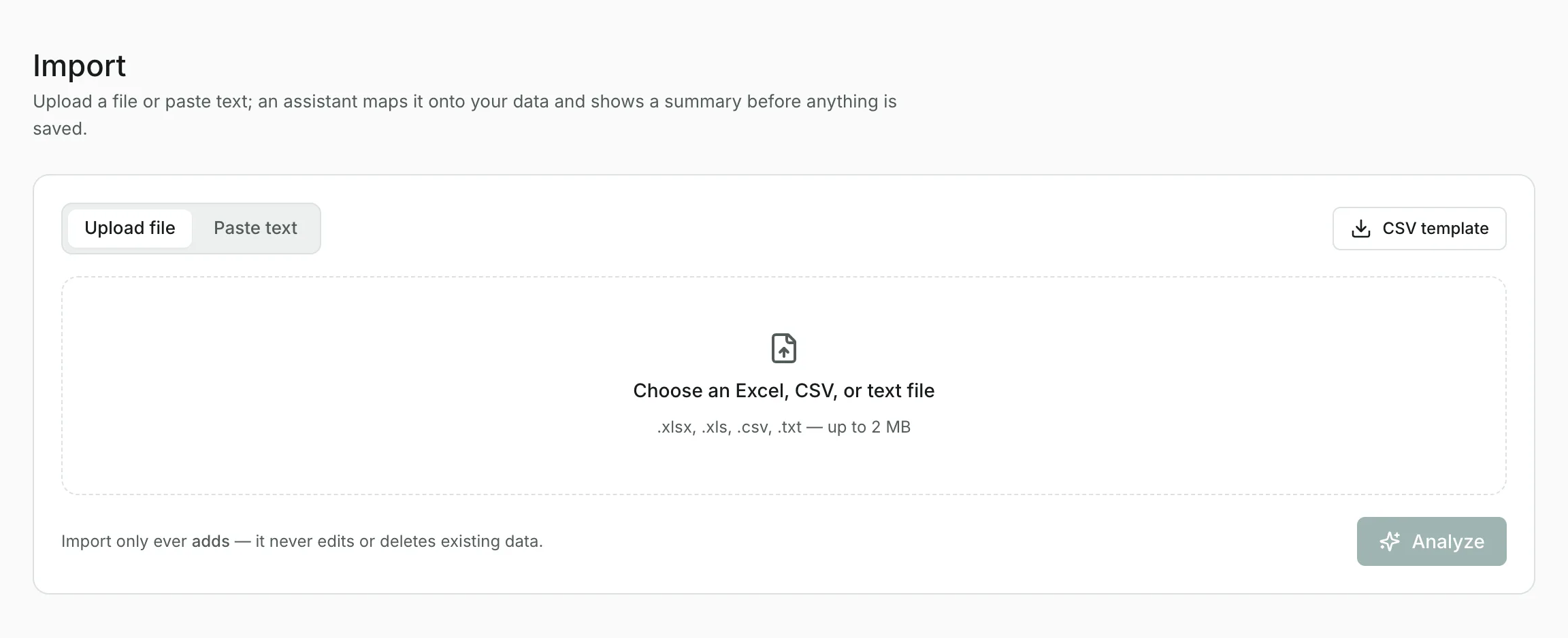
- Choose Upload file and pick an
.xlsx,.xls,.csvor.txtfile up to 2 MB, or choose Paste text and paste rows, a table or a plain description. - Check the column mapping: each column in your file is matched to a field, with an example value. Fix any that are wrong, or choose Ignore this column.
- Answer a few questions if the file leaves something open, such as which existing person a name refers to.
- Review the import: every item is marked Will create or Will match. Select Confirm import to save it all.
What happens to existing data#
Import only adds. Anything that already exists, such as a portfolio, project or person with the same name, is reused exactly as it is and marked Will match. To change existing records, edit them in the app.
The CSV template#
Any layout works, but a file in our own shape imports most reliably. Select CSV template for an example. Export writes the same columns, so a file you export can be edited and imported again.
AI allowance#
Reading a file uses AI and counts toward your daily AI allowance. If the allowance runs out while a file is being read, nothing is imported; try again after midnight UTC or with a smaller file.
Updated
Related topics
- ExportDownload projects, with their allocations and expenses, and people as a CSV file you can open in Excel or import again.
- Getting startedWhat SFH Portfolio tracks, how portfolios, projects, expenses and people fit together, and the first things to set up.
- ResourcesManage your roster, loaded labor rates and departments, see who's allocated where, and draft allocations with AI.