Working in the app
Projects
A project's budget, dates and spend over time, with its expenses and labor allocations, and how to edit, split, assign and archive.
The project page#
Open a project from its portfolio, the command bar or Search. The header shows its status, dates and lifetime spend. Below it:
- Cost for the selected period, next to lifetime spend.
- Spend over time, stacked by labor, capex and opex.
- Spend by category for the period.
- Expenses and Labor allocations, with one search box that filters both.
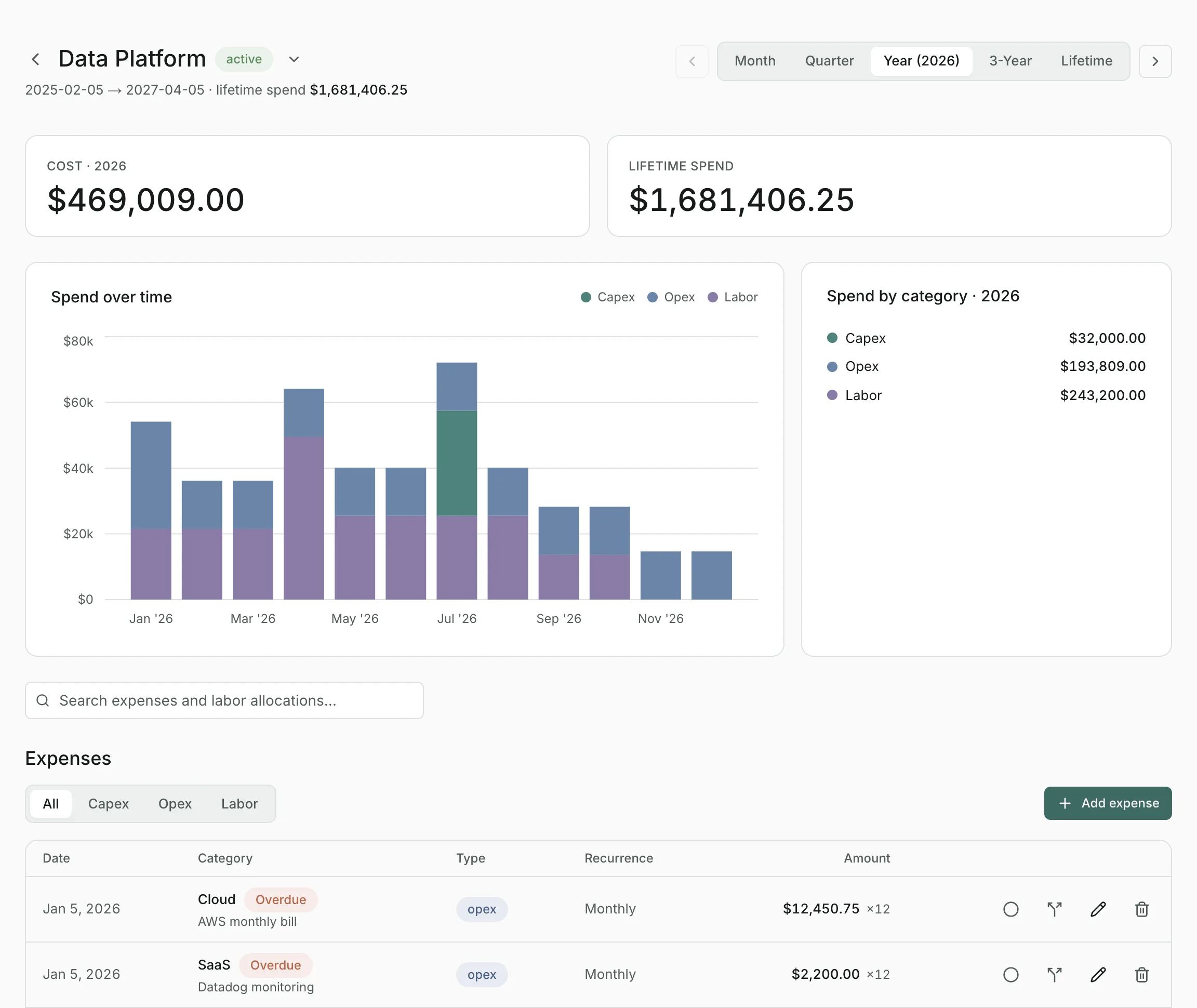
Project pages also offer the Lifetime timeframe, covering the project from start to finish.
Creating a project#
Create projects from the command bar: create project Search in the Platform portfolio with a $150,000 budget. Add dates and a status in the same sentence if you know them. On a portfolio's page you can leave the portfolio out. Import can create many projects at once.
Changing a project's settings#
Open the menu next to the project's name and choose Edit settings to change its:
- Name and Status: Planned, Active or Closed.
- Budget (USD).
- Start date and End date.
- Leave off the roadmap, which hides it from its portfolio's roadmap.
Expenses on a project#
Select Add expense to record a cost against the project, and filter the list by All, Capex, Opex or Labor. From each expense you can:
- Edit or delete it.
- Mark it spent by selecting its status. See Tracking what's spent.
- Split it into several dated payments that add up to the original amount, for a cost paid in installments.
Labor allocations#
An allocation gives a project a percentage of someone's time between two dates. Select Assign resource, then choose the person, the Allocation %, the Start and End dates, and optionally what they're working on. Each month, their loaded labor rate times the percentage counts as this project's labor.
Edit or remove an allocation from the list. You can also assign people from the command bar: assign Priya to this project at 50%.
Archiving and restoring#
Delete project in the menu next to its name takes the project out of active use. It drops out of its portfolio, the Dashboard and every total, along with its expenses and allocations.
It isn't erased: it's listed under archived projects on its portfolio's page, where Restore brings it back with all its data.
Updated
Related topics
- ExpensesRecord capex, opex and labor costs, make them recurring, mark them spent, and filter, search and bulk-delete them across every portfolio.
- ResourcesManage your roster, loaded labor rates and departments, see who's allocated where, and draft allocations with AI.
- PortfoliosGroup projects into portfolios, compare their spend, and open one to see its projects, expenses, people and roadmap.