Getting started
The command bar
Search everything as you type, make changes in plain English, and ask questions about your data from the bar at the top of every page.
Opening the command bar#
The command bar sits at the top of every page. The keyboard shortcut ⌘K on a Mac, or Ctrl K on Windows and Linux, jumps to it from anywhere. Press Esc to leave it.
Searching as you type#
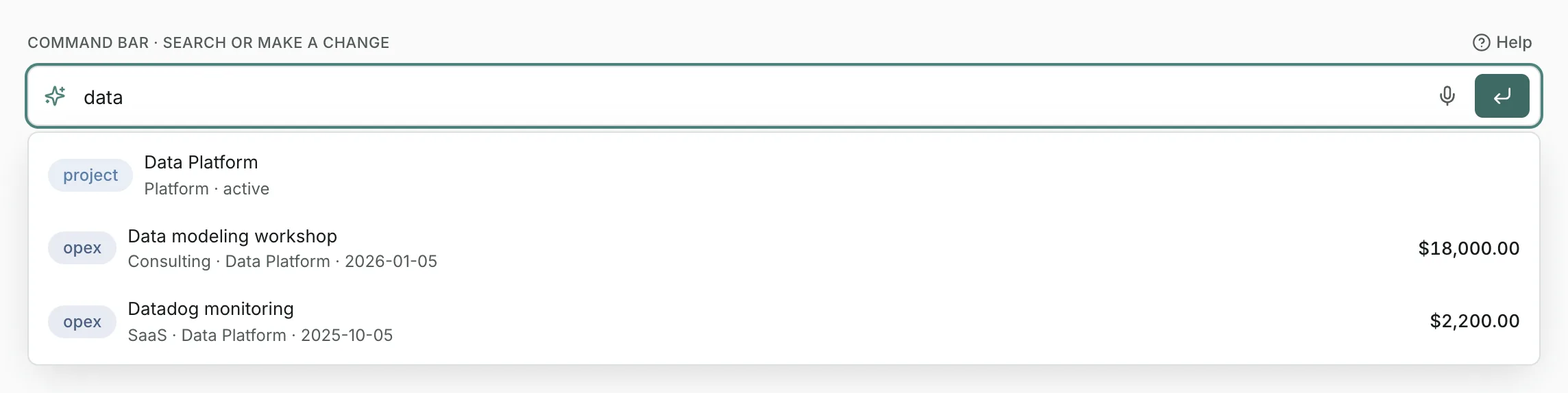
Start typing and matching projects, portfolios, people, expenses and allocations appear under the bar. Choose one to open it. When there are more matches than fit, See all results opens the Search page. Searching doesn't use AI.
Making changes#
Type what you want in plain English and press Enter. The command bar can:
- Record an expense:
add a $12,000 AWS bill to Data Platform for last month as opex - Record a recurring one:
add a $2,000 monthly Datadog bill to Observability until June 2027 - Assign a person:
assign Priya to the Billing project at 50% from last quarter - Create a project:
create project Search in the Platform portfolio with a $150,000 budget - Create a portfolio:
create a portfolio called Infrastructure
Nothing is saved straight away. The bar shows a preview of exactly what it understood: select Confirm to save it, or Cancel to drop it. If a name matches more than one thing, or nothing at all, it asks instead of guessing.
Asking questions#
Ask about your data the way you'd ask a colleague, for example:
Which projects are over budget this year?How much did we spend on cloud this quarter?Who isn't allocated to any project?
The answer appears under the bar, built from the same figures the app shows, and asking never changes anything. Use Ask a follow-up to keep going: the bar remembers your last few questions.
Dictating#
In browsers that support it, the microphone button in the bar lets you speak a command or question instead of typing it.
Daily AI allowance#
Changes and answers use AI and count toward your daily AI allowance, which resets at midnight UTC. If it runs out, the bar tells you, and searching keeps working.
Updated
Related topics
- SearchFind projects, portfolios and people by name, expenses by description or category, and labor allocations by what someone is working on.
- Getting startedWhat SFH Portfolio tracks, how portfolios, projects, expenses and people fit together, and the first things to set up.
- Connect to ClaudeUse SFH Portfolio from Claude or any app that supports remote MCP servers: ask about your data and, if you allow it, make changes.