Working in the app
Expenses
Record capex, opex and labor costs, make them recurring, mark them spent, and filter, search and bulk-delete them across every portfolio.
Open Expenses in SFH PortfolioThe Expenses page#
Expenses lists every expense with spend in the selected period, across all portfolios, with totals by type above the table.
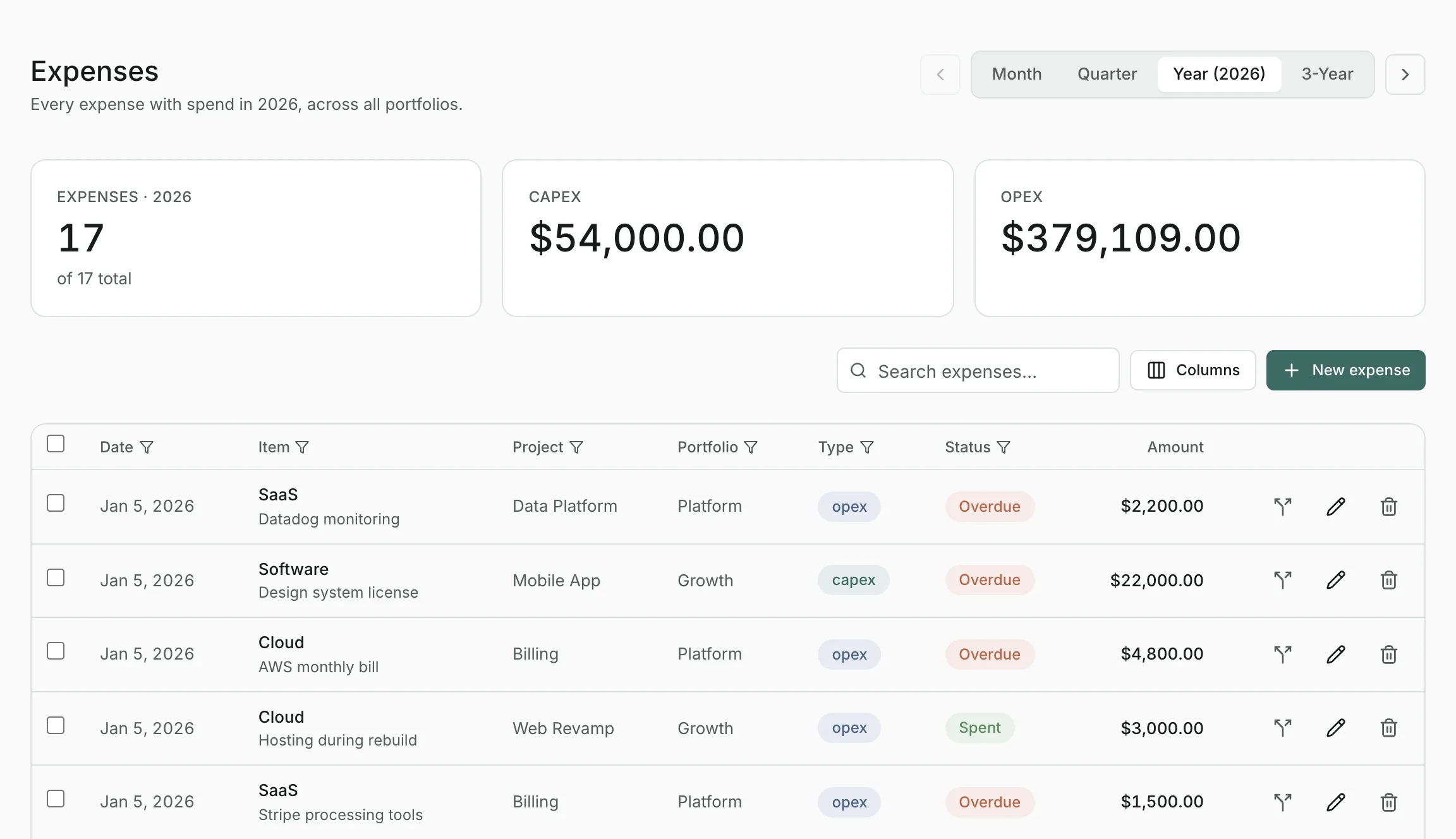
- Filter by type, project, portfolio, status and more from each column's header.
- Search descriptions and categories with the search box.
- A recurring expense's Date is its occurrence inside the period. Turn on the In period column from Columns to see how many times it falls in the period, such as ×3 for a monthly bill in a quarter.
Capex, opex and labor#
- Capex: capital spending, such as hardware and other assets.
- Opex: operating costs, such as cloud bills, subscriptions and services.
- Labor: people costs you record directly, such as a contractor's invoice. Labor for people on your roster comes from their allocations, so don't record it twice.
Adding an expense#
Select New expense here, Add expense on a project's page, or describe it in the command bar. You'll fill in:
- Project, Type, Category (such as Cloud or Hardware) and an optional Description.
- Amount (USD) and Date.
- Recurrence: One-time, Monthly, Quarterly or Yearly. A recurring expense can have an End date; without one it keeps recurring.
Tracking what's spent#
Capex and opex expenses have a status:
- Scheduled: its date hasn't arrived yet.
- Overdue: its date has passed and it isn't marked spent.
- Spent: you've confirmed the money went out.
Select the status to mark an expense spent, and select it again to undo. Overdue expenses are listed in the Dashboard's Needs attention.
Editing, splitting and deleting#
- Use the edit button on an expense's row to change it. For a recurring expense, the date you edit is when the series starts.
- Split expense replaces one expense with several one-time payments on different dates. The payments must add up to the original amount.
- Tick several expenses to delete them together. If someone changed one of them in the meantime, nothing is deleted and you're asked to try again.
Updated
Related topics
- ProjectsA project's budget, dates and spend over time, with its expenses and labor allocations, and how to edit, split, assign and archive.
- Timeframes and fiscal yearsHow the Month, Quarter, Year, 3-Year and Lifetime views work, how to step between periods, and how fiscal years shape every figure.
- ImportBring portfolios, projects, people, allocations and expenses in from an Excel, CSV or text file, with a review before anything is saved.