Organization and account
Members and invites
Invite teammates with a link, choose who's an owner, remove people, and see the apps connected to your organization.
Open Members and invites in SFH PortfolioOwners and members#
Everyone in an organization sees and edits the same portfolios, projects, expenses and people. Owners can also:
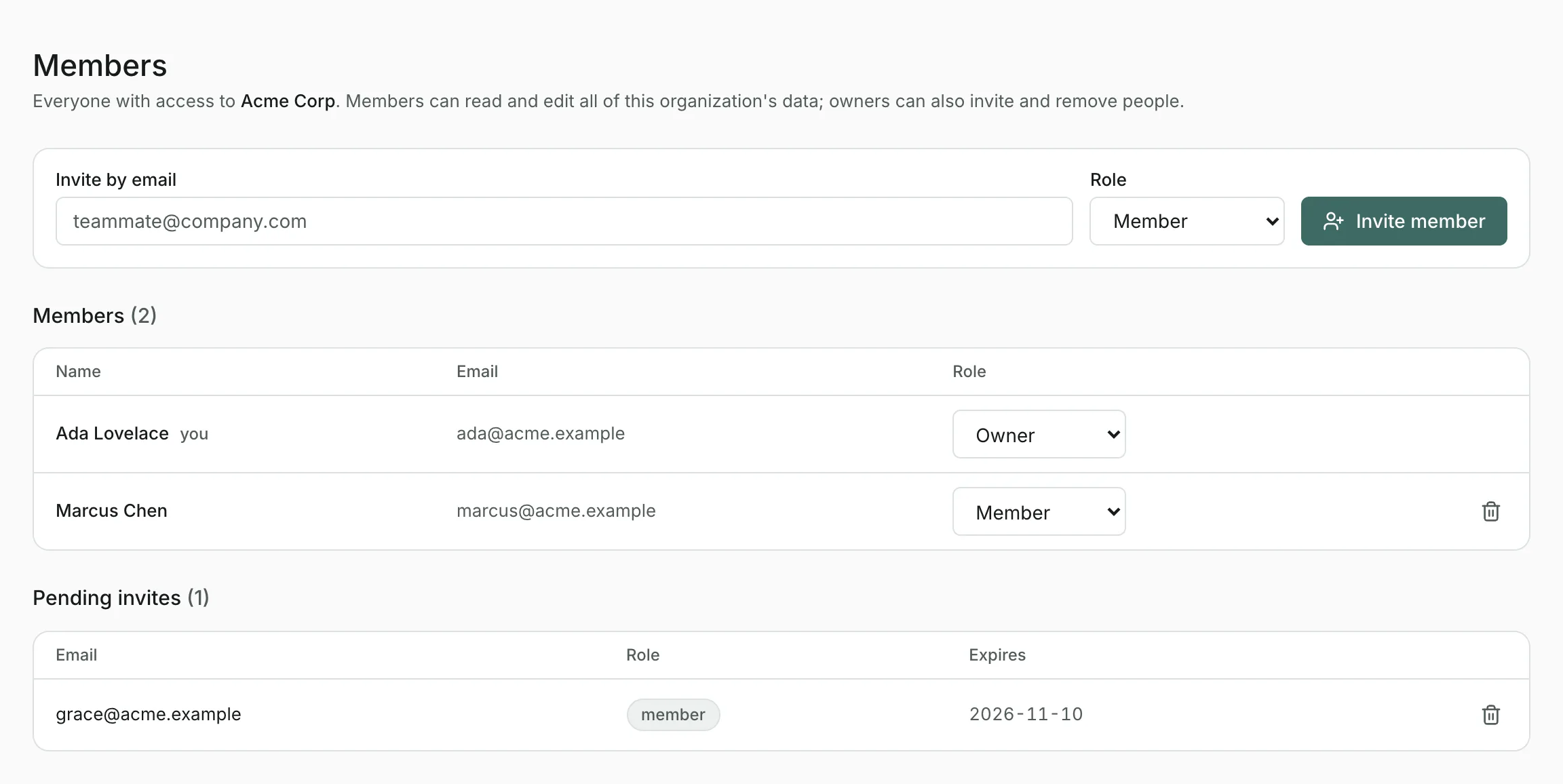
- Invite and remove people, and change their roles.
- Create and restore snapshots.
- Create scenario branches.
- See and disconnect everyone's connected apps.
Inviting someone#
- Open Members & invites from the organization menu at the top right.
- Enter their address under Invite by email, choose Member or Owner, and create the invite.
- Copy the link that appears and send it to them yourself. It's shown only once.
The link works for 14 days. Someone without an account creates one from the link and joins straight away; someone with an account signs in and joins. Pending invites are listed with their expiry date, and you can revoke one before it's used.
Changing roles and removing people#
Change someone's role, or remove them, from the members list. Removal takes effect immediately, even if they're signed in, and any apps they connected to the organization stop working.
Connected apps#
Owners see every app, such as Claude, that anyone has connected to the organization, and can disconnect any of them. See Connect to Claude.
Updated
Related topics
- Organizations and scenario branchesBelong to several organizations and switch between them, create a new one, or branch a copy of your data to try out a different plan.
- Connect to ClaudeUse SFH Portfolio from Claude or any app that supports remote MCP servers: ask about your data and, if you allow it, make changes.
- Your accountChange the name others see, find the email you sign in with, create an account and sign out.